
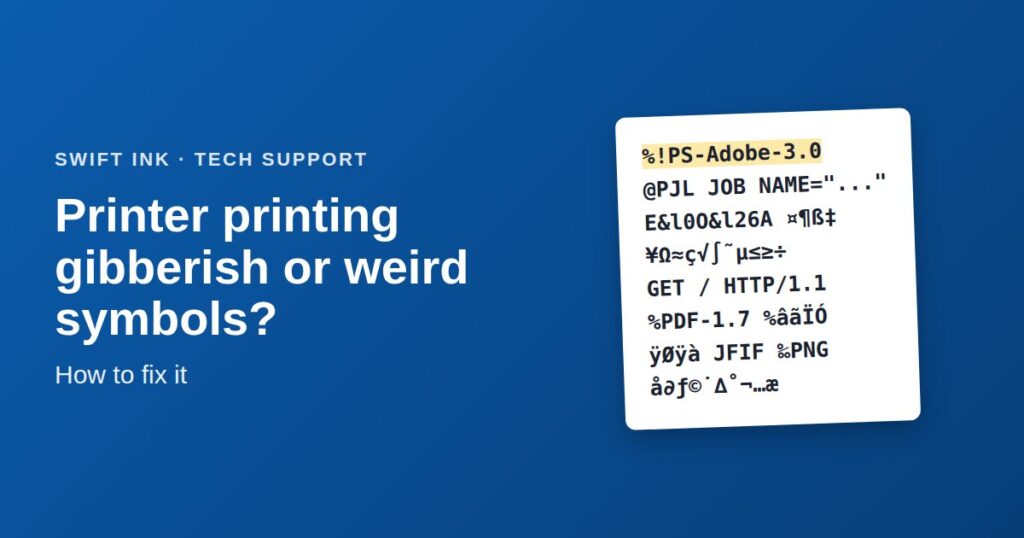
When a printer spits out pages of random letters, symbols, or code, the printer itself is almost never broken. It’s getting data it doesn’t understand. That usually comes from the wrong driver, a stuck print job, or a bad connection. The first few lines on the garbled page often tell you exactly which one.
Quick answer
- Cancel the job on the printer, turn the printer off, and unplug it for 60 seconds.
- Clear the print queue on your computer and restart the computer.
- Check which driver your computer is using. Install the manufacturer’s driver for your exact printer model, not a generic or different-model driver.
- If you use USB, try a different cable plugged straight into the computer, with no hub.
- If gibberish prints when nobody sent anything, a device on your network is sending data to the printer.
First, stop the paper
A garbled job can print dozens of pages. Stop it before you troubleshoot:
- Cancel on the printer
Press Cancel or Stop (often an X button) on the printer’s control panel.
- Turn it off and unplug it
Leave it unplugged for 60 seconds. This clears the job from the printer’s memory.
- Clear the queue on your computer
If you don’t, the computer sends the same broken job again as soon as the printer comes back on. The steps for Windows and Mac are below.
Read the gibberish: what the first line means
Printers “speak” page languages like PCL and PostScript, and the computer’s driver translates your document into one of them. Gibberish is usually one of those languages arriving at a printer that doesn’t understand it, so it prints the raw code as text. Look at the very first lines of the first garbled page and compare them with these examples.
| Top of the page looks like | What it means | Fix |
|---|---|---|
%!PS-Adobe-3.0 %%Creator: ... %%BoundingBox: ... |
PostScript sent to a printer that doesn’t understand PostScript. Common when a “PS” or generic PostScript driver is selected. | Switch to your model’s standard (PCL or manufacturer) driver. |
@PJL JOB NAME="..." @PJL SET RESOLUTION=600 E&l0O&l26A... |
PCL printer commands sent to a printer that doesn’t use PCL. Many home inkjets and some low-cost lasers don’t. | Remove the driver and install the manufacturer’s driver for your exact model. |
%PDF-1.7 %âãÏÓ 1 0 obj ... |
A PDF file was sent to the printer as raw data. Some printers can print PDFs directly, and many can’t. | Open the PDF in a PDF viewer and print it from there through the normal driver. Turn off any “direct PDF printing” option. |
GET / HTTP/1.1 Host: 192.168.1.25:9100 User-Agent: ... |
Web traffic hit the printer’s raw printing port (9100). Something on the network, like an app, scanner, or other device, sent it. | See gibberish when nobody printed. |
Quarterly repört ¤¶ß‡ ¥Ω≈ç√∫˜µ≤≥÷ å∂ƒ© |
Your document starts normally, then turns into symbols. The data got corrupted on the way. | Clear the queue, try another USB cable or port, and check your Wi-Fi signal. |
ÿØÿà JFIF ... ‰PNG IHDR ... |
An image file was sent raw, usually from an app or print utility that skipped the driver. | Open the image and print it from a regular app, or update the app sending it. |
Find your cause in 5 questions
-
Does every document print garbage, or just one?
- Just one file
- The file is the problem. Go to only one file prints garbage.
- Everything
- Go to question 2.
-
Does it print gibberish even when nobody sent a job?
- Yes
- Something on your network is sending data to it. Go to gibberish when nobody printed.
- No
- Go to question 3.
-
Does it happen from every computer and phone, or just one?
- Just one device
- It’s that device’s driver or print queue. Clear the queue and reinstall the driver on that computer.
- All devices
- Go to question 4.
-
Did it start after a new computer, a system update, or a new driver?
- Yes
- The driver changed. Install the manufacturer’s driver for your exact model.
- No
- Go to question 5.
-
Is the printer connected by USB?
- Yes
- Swap the USB cable, skip any hub or extension, and try a different port.
- No (network)
- Restart the router and printer, and give the printer a reserved IP address in your router.
Fix printer gibberish on Windows
1. Clear the print queue (print spooler)
A corrupted job stuck in the queue can print garbage again and again. Clearing it takes two minutes:
- Open Services
Press the Windows key, type
services, and open the Services app. - Stop the Print Spooler
Scroll to Print Spooler, right-click it, and choose Stop.
- Delete the stuck jobs
Open File Explorer and go to
C:\Windows\System32\spool\PRINTERS. Delete the files inside this folder. Don’t delete the folder itself. Windows may ask for administrator permission. - Start the Print Spooler again
Back in Services, right-click Print Spooler and choose Start.
2. Check which driver Windows is using
Go to Settings > Bluetooth & devices > Printers & scanners, select your printer, and open Printer properties. On the Advanced tab, look at the driver name. Warning signs include:
- A different model’s name, even from the same brand
- “Generic / Text Only,” or a “PS” or “PostScript” driver on a printer that doesn’t support PostScript
- A universal driver when the problem started right after it was installed
3. Reinstall the right driver
- In Printers & scanners, select the printer and choose Remove.
- Download the driver or full software package for your exact model from the printer maker’s support site.
- Install it, then restart the computer and print a test page.
Windows 11 driver changes: Microsoft is phasing out third-party printer drivers in Windows 11 and now prefers its built-in IPP class driver for printers that support it. That driver works well with most newer printers. If gibberish started after Windows set up your printer on its own, check the driver name and try the manufacturer’s package. On work computers where IT has turned on Windows protected print mode, third-party drivers are blocked, so ask your IT team.
Fix printer gibberish on a Mac
- Clear the queue
Open System Settings > Printers & Scanners, select the printer, click Printer Queue, and delete every job.
- Remove and re-add the printer
Select the printer and click the minus (–) button, or choose Remove Printer. Then click Add Printer. In the Use menu, choose AirPrint or your exact model’s driver, not “Generic PostScript Printer” or “Generic PCL Printer.”
- Reset the printing system if needed
If the problem keeps coming back, Control-click in the printer list and choose Reset printing system. This removes all printers, so you’ll add yours again afterward.
USB and network fixes
If the driver is right and the queue is clear, the data may be getting damaged on its way to the printer.
- USB: Use a short, good-quality USB cable plugged straight into the computer. Skip USB hubs, extension cables, and front-panel ports on desktop PCs. Unplug other USB devices to test.
- Wi-Fi: A weak signal can drop data mid-job. Move the printer closer to the router, or connect it with an Ethernet cable to test.
- IP address changes: If your router gives the printer a new address, the computer may send jobs to the wrong device, or a different device may get the printer’s old address. Reserve a fixed IP address for the printer in your router’s settings.
- Restart everything: Turn off the printer, the router, and the computer, then start the router first, then the printer, then the computer.
Gibberish when nobody printed anything
If pages of junk appear at random times, the printer is receiving data from something other than your print jobs. Common sources:
- A computer sending to the wrong printer. An old laptop or office PC might still have your printer set up under an old driver or a reused IP address. Check every device that has ever printed to it.
- Apps and devices scanning the network. Network tools, some security scanners, and smart-home devices probe open ports. Anything sent to the printer’s raw printing port (port 9100) gets printed as text. That’s the
GET / HTTP/1.1pattern in the table above. - The printer is reachable from the internet. If someone forwarded port 9100 on your router, strangers’ scans can reach your printer. Remove that port forward. Printers should only be reachable on your local network.
If you don’t need raw printing, you can usually turn off “Raw port 9100” or “JetDirect” printing in the printer’s web settings page (type the printer’s IP address into a browser). Make sure your computers print another way first, like IPP or WSD.
Only one file prints garbage
If every other document prints fine, the file itself is the problem, usually a damaged font or image inside it.
- PDF files: In Adobe Acrobat or Reader, open Print, click Advanced, and check Print As Image. This sends the page as a picture, which skips the problem fonts.
- Word and other documents: Save the file as a PDF and print the PDF, or copy the content into a new document.
- Web pages: Use the browser’s own print option or save the page as a PDF first.
A note before you update printer firmware
Some troubleshooting guides tell you to update your printer’s firmware. That can fix communication bugs, but on many HP and Epson printers firmware updates can also block compatible and remanufactured cartridges. Try the driver, queue, and cable fixes above first. If you use aftermarket cartridges, read our guides on blocking HP firmware updates and blocking Epson firmware updates before you update.
Frequently asked questions
Can a low or new ink or toner cartridge cause the printer to print gibberish?
No. Cartridges affect how the page looks, causing faded print, streaks, or smudges, but they don’t change the characters the printer receives. Gibberish comes from the driver, the print queue, the connection, or the file.
Why does my printer print a page of code instead of my document?
The printer received a page language it doesn’t understand, usually PostScript or PCL, and printed the raw commands as text. Install the manufacturer’s driver for your exact model.
Why does my printer print gibberish from my phone but not my computer?
The phone’s print app or service is sending a format the printer doesn’t support. Print through AirPrint on iPhone, the Default Print Service or Mopria on Android, or the printer maker’s own app.
Why does my printer keep printing gibberish after I restart it?
The broken job is still in your computer’s print queue, and the computer resends it when the printer comes back on. Clear the queue on every computer that uses the printer, then restart the printer.
Is my printer broken if it prints weird symbols?
Almost never. If a printer’s internal test or configuration page (printed from the printer’s own menu) looks normal, the printer is fine and the problem is in the data it’s receiving.