
Inkjet prints are wet when they leave the printer. Most smudges happen because the ink didn’t get enough time, or the right paper, to dry. The rest come from ink in places it shouldn’t be: on the rollers, on the platen under the print head, or on the print head itself where it brushes the paper.
Quick answer
- Set the paper type in the print settings to match the paper you loaded, and print on the correct side.
- Turn on your printer’s drying time or smudge reduction setting, especially for 2-sided printing.
- If the smears are streaks running the length of the page, the print head is rubbing the paper. Flatten the paper and turn on the thick paper or “prevent paper abrasion” setting.
- If marks show up on the back of the page, clean the paper rollers and the platen inside the printer.
Match your smudge to a pattern
Look closely at a smudged page. Where the ink is and which direction the smear runs tell you what’s causing it.
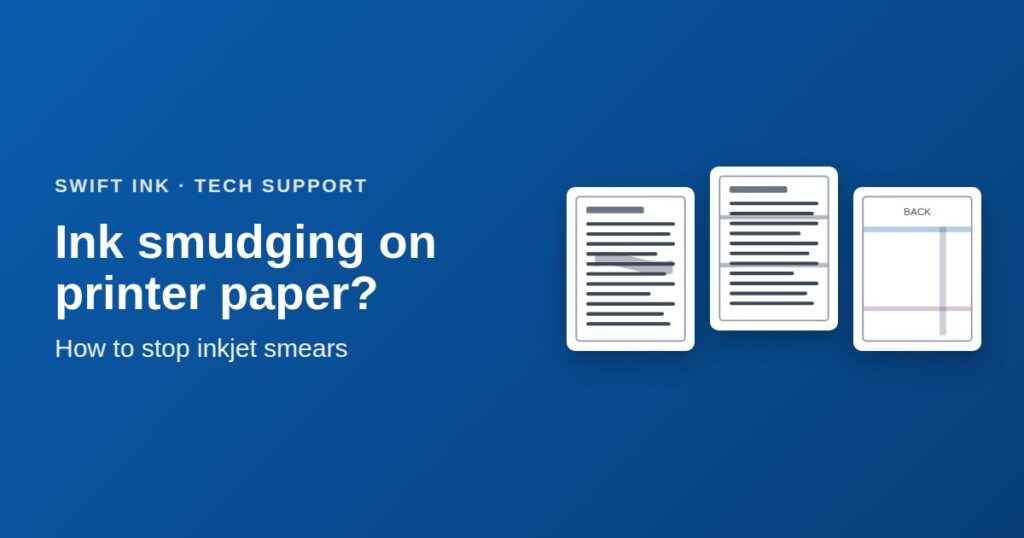
Smears when touchedThe ink is still wet. Paper type, drying time, or heavy ink coverage. Streaks running across the pageThe print head is brushing the paper. Curled or thick paper, or the wrong paper setting. Ink marks on the backInk on the rollers or platen. Common after borderless printing. Dotted tracksTiny dot trails from the exit wheels pressing into wet ink. Blurry or fuzzy textWrong paper type, misaligned print head, or absorbent paper. Thin white lines in color areasNot a smudge. These are clogged nozzles, fixed with a print head cleaning.
Where inkjet smudges come from
An inkjet printer pulls paper under a print head that moves side to side. The head sits just above the paper and sprays tiny drops of ink. Then small toothed “star wheels” guide the wet page out of the printer.
- Feed rollers. Ink or dust on them marks every sheet.
- Head-to-paper gap. Curled or thick paper rubs the print head and drags ink.
- Platen. Ink that sprays past the paper edge lands here and transfers to the back of the next sheet.
- Star wheels. They can leave dotted tracks on ink that hasn’t dried.
Ink smears when you touch it
If the ink is fine when the page first comes out but smears under your finger or when pages stack up, the ink hasn’t dried. Fix it from the cheapest step up:
-
Set the right paper type Free
This is the most common cause. The paper type setting controls how much ink the printer lays down and which inks it uses. If you print on glossy photo paper with the setting on “Plain Paper,” the printer uses far too much ink, and some of it won’t dry on a glossy surface. Choose the exact paper type in the print dialog every time.
-
Print on the correct side Free
Photo paper and coated paper have one printable side, usually the brighter or glossier side. Ink printed on the back of photo paper may never dry. Check the paper’s instructions for which way to load it in your tray.
-
Give the ink time to dry Free
Take each sheet out as it prints instead of letting them stack. Let glossy photos dry flat, face up, before handling them. For photo albums or framing, wait a full day.
-
Turn on the drying time setting Free
Most printers can pause between pages or slow down to give ink more time to dry. This matters most for 2-sided printing, because the printer flips the page while side one is still wet. See the settings by brand below.
-
Lower the ink density for heavy pages Free
Pages with big solid areas, like charts, dark backgrounds, or slides, put a lot of ink on plain paper. Switch to “Standard” instead of “High” quality, lighten dark backgrounds, or print on heavier paper that absorbs more ink.
Streaks running across the page: the print head is rubbing
Smeared streaks that run across the page in the direction the print head moves, often near the top or bottom edge, mean the paper is touching the print head. This is sometimes called “head strike” or “paper abrasion.”
- Flatten curled paper. Paper that curls up, especially at the corners, rubs the head. Flip the stack over in the tray, or use paper from a fresh ream. Store photo paper flat in its bag.
- Use the thick paper setting. Many printers can raise the print head for thick paper, card stock, and envelopes. On Epson printers it’s called Thick Paper or Thick Paper and Envelopes. On Canon printers it’s Prevent paper abrasion.
- Don’t overload the tray. An overfilled tray can feed paper at an angle, which lifts one edge toward the head.
- Check for a foreign object. A paper clip, torn bit of paper, or label stuck inside can push the paper up. Turn off the printer and look with a flashlight.
Ink on the back of the page
If the front of your page is fine but the back has smudges, dotted lines, or color stripes, ink has built up inside the printer where the paper touches it.
-
Run the printer’s built-in cleaning tool Free
Many printers have a maintenance option made for exactly this. On Canon printers, look for Bottom Plate Cleaning and Roller Cleaning. Many Epson models have Paper Guide Cleaning, which feeds plain paper through to wipe the inside. Check your printer’s maintenance menu or software.
-
Clean the rollers by hand Free
Turn off and unplug the printer. Wipe the rubber feed rollers with a lint-free cloth lightly dampened with distilled water, and let them dry. Don’t use alcohol on rubber rollers unless your manual says it’s safe.
-
Take a break from borderless printing Free
Borderless printing sprays ink a little past the paper’s edges onto absorbent pads in the platen. After a lot of borderless prints, that ink can transfer to the back of the next pages. Print a few plain-paper pages with normal margins, or run the cleaning tool.
-
Make sure the paper size matches Free
If the printer thinks it’s printing on letter paper but you loaded a 4 × 6 card, it prints right onto the platen. Set the paper size in the print dialog and the tray settings.
Blurry, fuzzy, or doubled text
Text that looks soft, fuzzy, or slightly doubled isn’t wet ink. Something is off with where the ink lands.
- Check the paper type setting. Plain paper soaks up ink and spreads it a little. That’s normal. On photo paper with the wrong setting, ink can pool and look blurry.
- Align the print head. Run the print head alignment from your printer’s maintenance menu or software. This is the fix for doubled or “shadowed” text and lines.
- Turn off high-speed or bidirectional printing if your driver has it. Printing in both directions is faster but can blur fine text.
- Try a smoother paper. Rough or recycled paper can make ink feather. A brighter, smoother sheet gives crisper text.
Smudge-fighting settings by brand
| Brand | Setting name | What it does | Where to find it |
|---|---|---|---|
| Canon | Ink Drying Wait Time | Adds a pause before the next page prints | Canon IJ Printer Assistant Tool, then Custom Settings (Windows) |
| Canon | Prevent paper abrasion | Widens the gap between the print head and the paper | Same Custom Settings screen, or the printer’s control panel on many models |
| Epson | Thick Paper and Envelopes | Raises the print head and slows printing | Printer software, then Maintenance, then Extended Settings. Some models also have a Thick Paper option on the control panel. |
| Epson | Increase Ink Drying Time | Gives each side more time to dry in 2-sided printing | 2-sided printing settings in the printer software |
| Brother | Reduce Smudge | Adds drying time. Printing is slower and may look a little lighter | Printing Preferences, then Advanced, then Other Print Options (Windows) |
| HP | Paper type | Sets the ink amount and drying behavior for that paper | Print dialog, then Paper/Quality. Choose the exact paper you loaded. |
Setting names and locations vary by model and software version. If you can’t find one, search your printer’s online manual for “smudge” or “drying.”
Dye ink vs. pigment ink: why the paper setting matters
Many inkjet printers use two kinds of ink:
- Pigment ink (usually the black on many printers) sits on top of the paper. It makes sharp, water-resistant text on plain paper, but it doesn’t soak into glossy photo paper, so it can stay smudgy there.
- Dye ink (usually the colors, and sometimes a second photo black) soaks into the paper. It’s great for photos but can smear more easily with water or a highlighter.
When you choose a photo paper setting, the printer driver avoids using pigment black on the glossy surface. That’s one more reason the wrong paper setting causes smears. It also explains why a highlighter can smear some printed text: dye-based ink re-wets when the highlighter touches it. Let pages dry for several hours, or highlight with a dry or gel highlighter.
For more on picking paper that works well with aftermarket ink, see our guide to the best photo papers for compatible ink cartridges.
Cheat sheet: inkjet smudges, causes, and fixes
| What you see | Most likely cause | Fix |
|---|---|---|
| Smears when touched or stacked | Wrong paper type, not enough drying time | Set the paper type, remove sheets one by one, turn on drying time |
| Smears on glossy photo paper | Printed on the wrong side, or plain paper setting | Flip the paper, choose the matching photo paper setting |
| Streaks across the page | Print head rubbing the paper | Flatten paper, turn on Thick Paper or Prevent paper abrasion |
| Marks or stripes on the back | Ink on rollers or the platen | Bottom plate or paper guide cleaning, wipe rollers |
| Dotted tracks | Exit star wheels on wet ink | Correct paper type, more drying time, less ink coverage |
| Smears on side 1 of 2-sided pages | Page flipped before ink dried | Increase drying time for 2-sided printing |
| Blurry or doubled text | Misaligned print head | Run print head alignment, turn off high-speed printing |
| Thin white lines through color | Clogged nozzles (not a smudge) | Nozzle check, then print head cleaning |
Could a leaking ink cartridge be the cause?
A leaking cartridge usually leaves blobs or drips of ink rather than smears, often in the same spot on every page. Turn off the printer, take the cartridge out, and look for wet ink on its bottom or sides. Wipe the printer’s cartridge bay with a lint-free cloth.
A good compatible ink cartridge is made to dry like the brand-name ink it replaces, so smudging that starts right after a cartridge change is more often a paper or settings change than the ink. If a Swift Ink cartridge leaks or keeps smudging after you’ve tried the steps above, contact our support team. You can also see our returns and exchanges policy.
How to prevent ink smudges
- Choose the paper type every time you change paper.
- Store paper flat and sealed, especially photo paper.
- Turn on the drying setting if you print 2-sided often.
- Print at least once a week so the ink stays fresh and the nozzles don’t dry out.
- Run the printer’s cleaning tool after a big batch of borderless prints.
Frequently asked questions
Why does my printer smudge ink on plain paper?
Usually because of heavy ink coverage, damp paper, or 2-sided printing without enough drying time. Make sure the paper type is set to plain paper, lower the print quality for dark pages, and turn on your printer’s drying setting.
How long does inkjet ink take to dry?
On plain paper, text is usually dry to the touch within seconds to a minute. Photos on glossy paper can feel dry in minutes but take much longer to dry all the way through, so let them sit for several hours before stacking, and about a day before framing.
Why does my highlighter smear printed text?
Dye-based inks can re-wet when a water-based highlighter touches them. Let the pages dry for several hours, or use a dry or gel highlighter.
Why are there marks on the back of my prints?
Ink has built up on the rollers or the platen inside the printer, often after borderless printing or printing on paper smaller than the paper size setting. Run your printer’s bottom plate or paper guide cleaning, then wipe the rollers.
Do compatible ink cartridges smudge more?
A quality compatible ink cartridge is made to dry like the brand-name ink it replaces. Most smudging comes from the paper type setting, the paper itself, or ink buildup inside the printer, all of which happen with any brand of ink.